3.1 DataOps Automation
3.1.1 DataOps Overview
DataOps is a set of practices and cultural habits centered around building robust data systems and delivering high-quality data products. It is to data engineering what DevOps is to software engineering.
3 Pillars of DataOps
- Automation: CI/CD (build, test, integrate, deploy) and Infrastructure as Code (e.g.,
Terraform,AWS CloudFormation). - Observability and Monitoring
- Incident Response
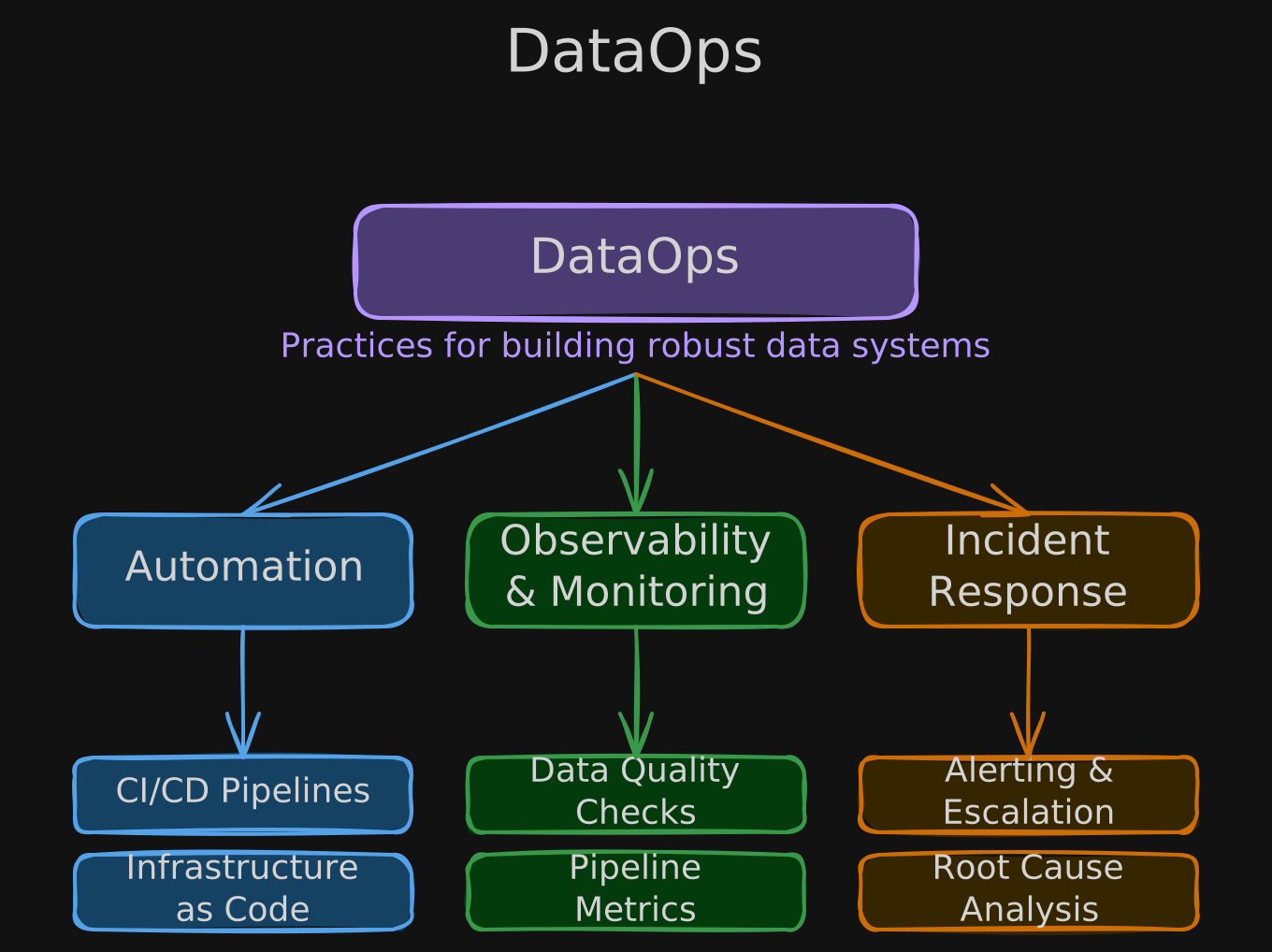
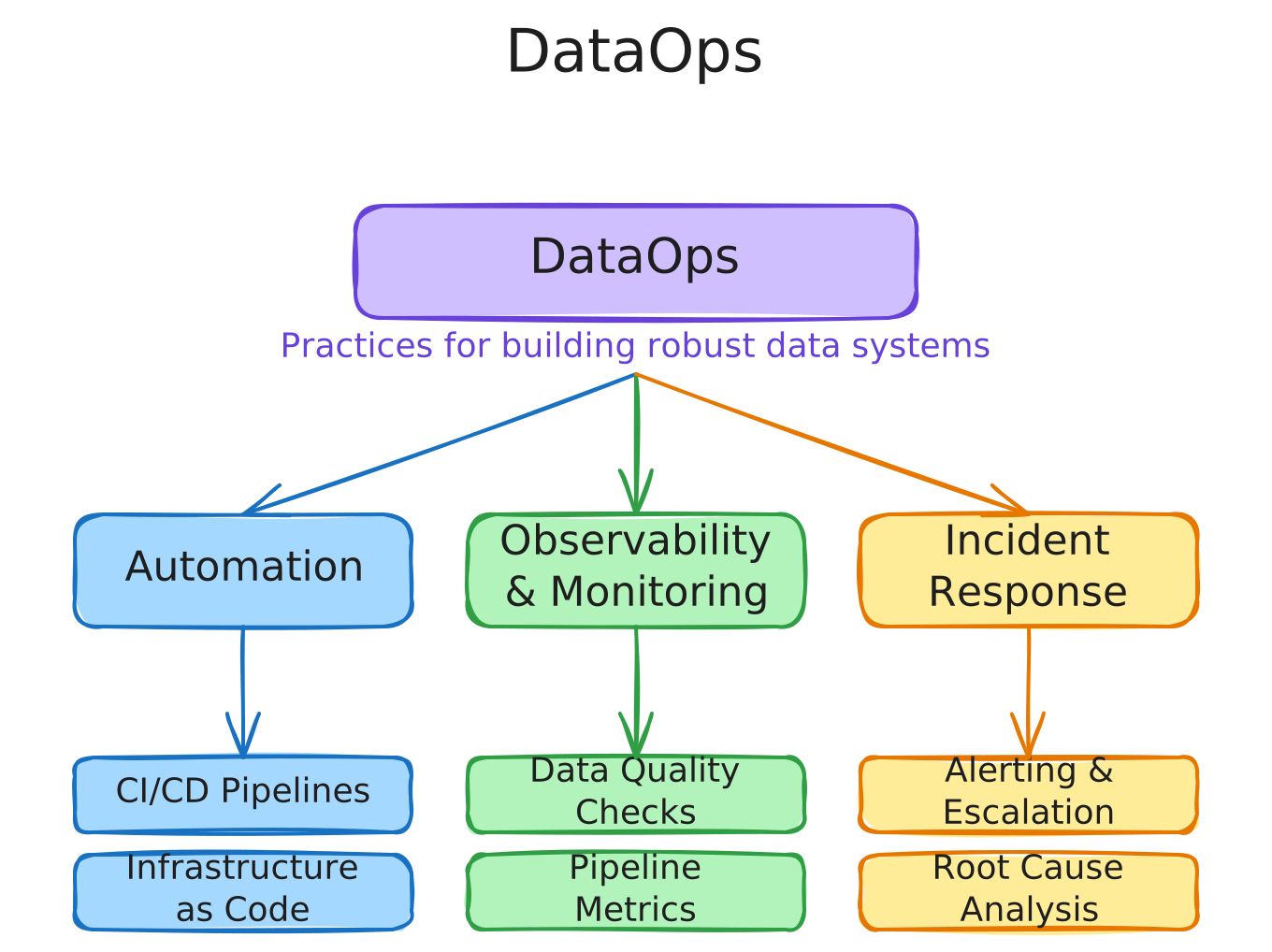
DataOps Automation
CI/CD brings version control to both code (via git) and data (enabling rollback to previous versions). Infrastructure as Code (IaC) extends version control to your entire infrastructure, letting you track changes in the code that defines your infra and revert to previous states if necessary.
3.1.2 Infrastructure as Code with Terraform


Terraform
IaC replaces manual console clicking and fragile bash scripts with declarative configuration files that define your cloud resources.
Terraform uses HCL (HashiCorp Configuration Language), a declarative language where you specify the desired end state of your infrastructure rather than the steps to get there. It is highly idempotent — repeatedly executing the same HCL commands produces the same end result.
By contrast, Bash is procedural: you must specify every step, handle all conditions, and manage error handling yourself, making it far more complex for infrastructure management.
Both AWS CloudFormation and Terraform are IaC tools.
The HCL Syntax
Each resource block follows the pattern: resource "<type>" "<name>" { ... } with key-value pairs inside.
# vpc.tf - create a VPC with a /16 CIDR block (65,536 IP addresses).
# instance_tenancy = "default" means EC2 instances run on shared hardware.
resource "aws_vpc" "main" {
  cidr_block       = "10.0.0.0/16"
  instance_tenancy = "default"

  tags = {
    Name = "main"
  }
}
# ec2.tf - launch an EC2 instance using an Ubuntu AMI looked up via a data source.
# t3.micro is a small, burstable instance type (free tier eligible).
resource "aws_instance" "web" {
ami = data.aws_ami.ubuntu.id
instance_type = "t3.micro"
tags = {
Name = "HelloWorld"
}
}# s3.tf - create an S3 bucket for the data lake.
# bucket_prefix generates a unique name using the project variable
# and the AWS account ID from a data source.
resource "aws_s3_bucket" "data_lake" {
bucket_prefix = "${var.project}-datalake-${data.aws_caller_identity.current.account_id}-"
}
# Block all public access to the data lake bucket.
# References the bucket above via resource_type.resource_name.attribute.
resource "aws_s3_bucket_public_access_block" "data_lake" {
bucket = aws_s3_bucket.data_lake.id
block_public_acls = true
block_public_policy = true
ignore_public_acls = true
restrict_public_buckets = true
}Terraform Workflow
- Write config files to define your resources.
Terraformprepares the workspace — installs necessary files and creates an execution plan for the resources it will create, update, or destroy.- You approve the plan.
Terraformapplies the proposed steps.
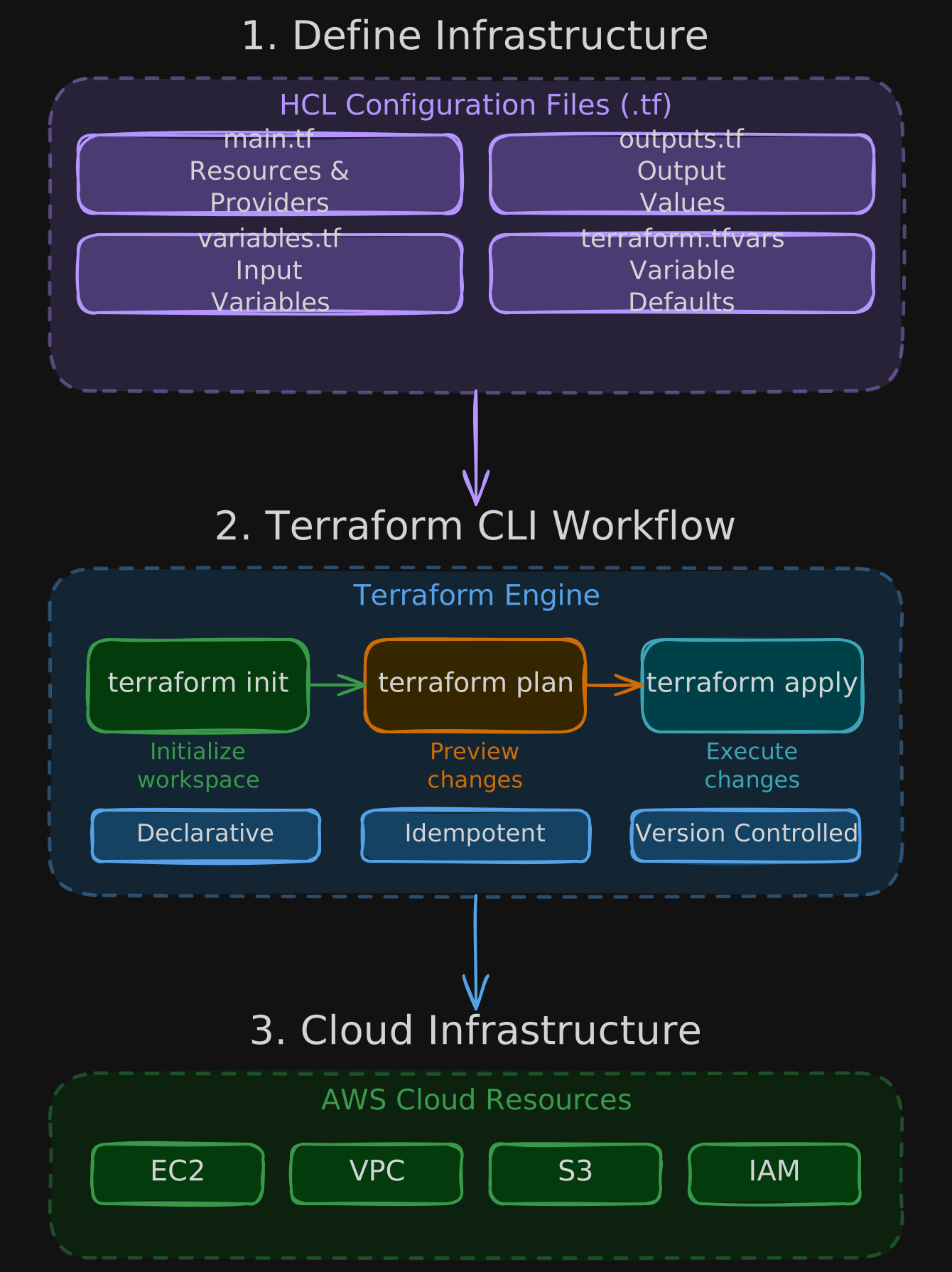
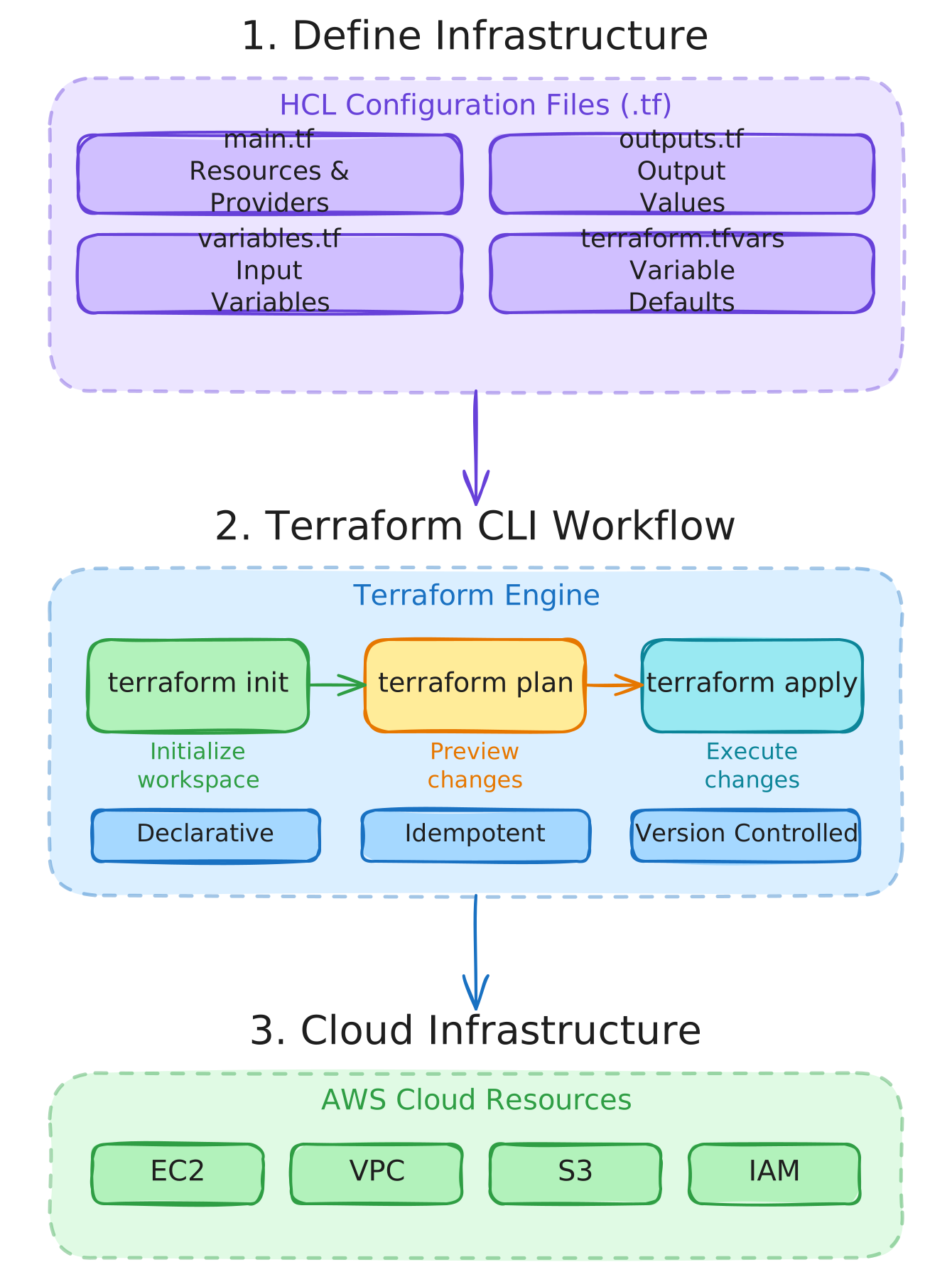
3.1.3 Terraform Tutorials and Examples
Terraform Basic Example
This example creates an EC2 instance and launches it in the default VPC of your selected region.
- Use any IDE and install
Terraformin your environment. - Use AWS credentials to authenticate
Terraform. - Create a
main.tfconfig file structured into 5 sections: Terraform settings, Providers, Resources, Inputs, and Outputs.
# main.tf - complete single-file Terraform config for an EC2 instance.

# Declare required providers and their version constraints.
# "source" tells Terraform where to download the provider plugin.
terraform {
  required_providers {
    aws = {
      source  = "hashicorp/aws"   # download from HashiCorp registry
      version = ">= 4.16"        # minimum provider version
    }
  }

  required_version = ">= 1.2.0"  # minimum Terraform CLI version
}

# Configure the AWS provider with the target region.
# Terraform uses this to authenticate and route API calls.
provider "aws" {
  region = "us-east-1"
}

# Launch an EC2 instance with the specified AMI and instance type.
resource "aws_instance" "webserver" {
  ami           = "ami-0453ec754f44f9a4a"  # Amazon Linux 2 AMI
  instance_type = "t2.micro"               # free tier eligible

  tags = {
    Name = "ExampleServer"
  }
}
Core Terraform commands:
terraform init— creates.terraformsubdirectory, initializes the backend and plugin provider.terraform plan— creates an execution plan (+= new resource,-= destroyed,~= updated).terraform apply— shows the plan again, asks for approval, then applies it.
Defining Variables and Outputs
Variables let you avoid hardcoding values that may change. Define them in your config and reference them using var.<variable_name> syntax. Variables can live in the same file or in a separate .tfvars file that Terraform automatically loads at plan/apply time.
# main.tf - updated to use variables instead of hardcoded values.

terraform {
  required_providers {
    aws = {
      source  = "hashicorp/aws"
      version = ">= 4.16"
    }
  }

  required_version = ">= 1.2.0"
}

# Now using var.region instead of a hardcoded value.
provider "aws" {
  region = var.region
}

# The Name tag now references var.server_name instead of a literal string.
resource "aws_instance" "webserver" {
  ami           = "ami-0453ec754f44f9a4a"
  instance_type = "t2.micro"

  tags = {
    Name = var.server_name
  }
}

# Variables make the config reusable across environments.
# Each variable has a type and optional default value.
variable "region" {
  description = "region for aws resources"
  type        = string
  default     = "us-east-1"  # used when no value is provided
}

variable "server_name" {
  description = "name of the server running the website"
  type        = string
  # no default - Terraform will prompt for this value at apply time
}

# Export resource attributes so they can be viewed in the console,
# referenced by other Terraform configs, or used in scripts.
# Pattern: resource_type.resource_name.attribute
output "server_id" {
  description = "Instance ID of the webserver"
  value       = aws_instance.webserver.id
}

output "server_arn" {
  description = "ARN of the webserver"
  value       = aws_instance.webserver.arn
}
# terraform.tfvars - supply values for variables without defaults.
# Terraform automatically loads this file when running plan/apply.
server_name = "ExampleServer"Access outputs with terraform output (all) or terraform output server_id (specific).
Organizing Terraform Files
As configs grow, split main.tf into variables.tf, outputs.tf, and providers.tf. Define resources in main.tf or dedicated [resource_name].tf files.
Data Sources
Data sources are data blocks that reference resources created outside Terraform or in another Terraform workspace. They are read-only — they fetch info but don’t create resources. Referenced using the pattern data.<type>.<name>.<attribute>.
# main.tf - launch an EC2 instance inside a pre-existing subnet.

# Look up an existing subnet created outside this config
# (e.g., manually or in another Terraform workspace).
data "aws_subnet" "selected_subnet" {
  id = "subnet-0a4518da5927f157e"
}

# Launch the webserver inside the looked-up subnet.
resource "aws_instance" "webserver" {
  ami           = "ami-0453ec754f44f9a4a"
  instance_type = "t2.micro"
  subnet_id     = data.aws_subnet.selected_subnet.id

  tags = {
    Name = var.server_name
  }
}